
Scan Before You Print.
Verify every barcode and QR code is actually readable before it hits the shelf or the label sheet. Point your camera at the screen — or drop in any image file — and confirm it decodes instantly, right in your browser.
Barcode Scannability Standards
- Quiet Zones: Keep at least 10x the narrow bar width margin on both left and right edges.
- High Contrast: Always print dark bars on light backgrounds. Inverted barcodes fail on many laser scanners.
- Print Resolution: Use 300+ DPI for retail and shipping labels to prevent blurred bar edges.

One scan. Every format. Zero doubts.
Point your phone camera — or drop a PNG, JPG, WEBP or SVG screenshot — and the ZXing engine decodes it instantly. Same 13 symbologies professional handhelds trust: Code 128, Code 39, Code 93, EAN-13/8, UPC-A/E, ITF, Codabar, QR, Data Matrix, PDF417 and Aztec.
The camera path uses a live viewfinder and continuous decode — center the symbol and the read lands the moment a valid match is found. The result panel shows the decoded payload, detected format and character count, with one-click copy and a direct re-link into the generator.
Every decode runs on-device — your images are never uploaded or stored anywhere. Ideal pre-flight QA before any label run: wrong checksum, inverted bars, missing quiet zone — caught in one scan each, before a single carton ships.
Catch bad labels before they ship
Scan a sample from every print run — proof, inbound, or QA bench.
 PRE-FLIGHT QA
Pre-flight Print QA
Scan a test label from every batch before running the full job — catch blur, wrong checksums and inverted bars for free.
 INBOUND / DOCK
Inbound Dock Verification
Verify supplier cartons without leaving the dock — catch bad labels before they enter your warehouse.
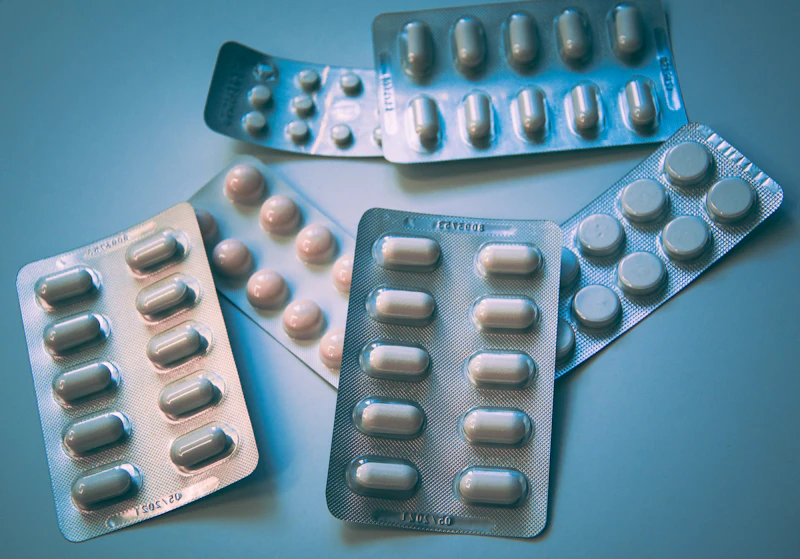 PHARMA / UDI
Pharma Serialization QA
Confirm FDA UDI and EU FMD serialization codes read correctly before kit assembly and release.
Scan. Decode. Fix. Rescan.
Every decode shows the full picture — payload, detected format and character count — so when a supplier's print looks fine but scans dead, you see exactly why: wrong checksum, inverted bars, missing quiet zone, under-inked edges. One screenshot tells the whole story.
Click “Open in Barcode Generator” on any result — the detected format and payload are carried across in the URL, so you recreate the exact symbology, fix the bad digits, export SVG or PNG and re-scan. The whole loop closes in under a minute, no emails to the print shop.
QA benches, protein-pack print proofing, inbound dock audits against ASN, pharma serialization release checks, pre-flight FNSKU verification — the workflow ends here when it passes, not at the customer rejection email.
The free online barcode scanner — verify before you print a single label
Before a 5,000-label print run goes into production, scan one. This free online barcode scanner reads barcodes and QR codes from your phone's camera or from an uploaded image — instantly, in your browser, with nothing installed and nothing uploaded. It is the fastest way to catch checksum errors, inverted or washed-out barcodes, missing quiet zones and under-inked print jobs before they cost you a reprint, a rejected shipment or a chargeback. Bookmark it next to the generator and your QA loop closes itself: generate, scan, confirm, print.
Built on the same open-source ZXing decoding engine that powers countless warehouse handhelds and retail apps, it decodes every major 1D and 2D symbology — Code 128, Code 39, Code 93, EAN-13, EAN-8, UPC-A, UPC-E, Interleaved 2 of 5 (ITF), Codabar, QR Code, Data Matrix, PDF417 and Aztec. After each scan you see the decoded payload, the detected format and the exact character count, with one click to copy the result or to open the matched barcode straight inside the generator for a same-symbology reprint. Thirteen formats, one window, no app store — and scanning works identically offline once the page has loaded, which matters on shop floors with poor connectivity.
How to scan a barcode in 3 steps
- 1Either drop a PNG, JPG, WEBP or SVG image into the upload area, or switch to camera mode and center the barcode inside the frame — we use the rear camera by default.
- 2Read the decoded payload, the detected format and the character count. ZXing validates checksums and start/stop patterns automatically.
- 3If the read failed, fix the label in the bar code generator and re-scan — a good label prints clean on any shelf scanner.
Why do scans fail — and how to prevent it
- Low contrast. Scanners need dark modules on light backgrounds — inverted or pastel-on-pastel codes fail silently on many laser guns.
- Missing quiet zones. Keep at least 10× the narrow-bar width as margin on both sides of the symbol, with nothing encroaching.
- Blur and low DPI. Under ~300 DPI, bar edges smear into each other. Render higher resolution or enlarge the symbol.
- Damaged or partial symbols. Data Matrix and QR survive ~30% damage with ECC; linear 1D codes do not tolerate scratches or folds.
- Wrong quiet-zone color. Red ink disappears under red laser light — stick to black on white or very pale stock.
Where teams rely on this barcode scanner
Label print vendors use it to QA proofs before client sign-off. Warehouse teams scan inbound supplier cartons without leaving the dock. E-commerce sellers verify FNSKU and ASIN barcodes before Amazon rejects a shipment. Pharma and medical device packagers confirm serialization codes read before kit assembly. IT teams audit legacy asset tags before a hardware refresh. And QA engineers scan test prints from every output symbology to close the loop between generator and real-world scan.
Scanner plus generator — a closed quality loop
A failing scan is never a mystery once you see the decoded payload side-by-side with your expected data. Click "Open in Barcode Generator" — the detected format and payload are carried across in the URL, so you can recreate the exact symbology, fix the checksum-sensitive digits, re-export SVG or PNG and re-scan within a minute. No label leaves the building until it scans, and nothing about the round trip requires an account, a download or an internet connection once the page has loaded.
When an online scanner beats handheld hardware
It will not replace a rugged Zebra gun in a -20°C freezer aisle, but for everything short of that — QA desks, print proofs, office audits, supplier verification, onboarding new SKU sheets, checking a batch of 200 bin tags before rollout — a browser page opens faster than any device boots, on any laptop, with no drivers. Keep it pinned next to the generator, and your print floor's first line of defense is always one tab away. Most failed print runs we hear about were caught a page ago — by someone who simply scanned one label before approving the job.
Privacy and camera permissions, explained
The camera mode requests rear-camera permission only when you click "Use Camera", shows a live preview with a scan overlay, and releases the stream the moment a code decodes or you press Stop. Uploaded images are processed in-memory in your browser — nothing is written to disk, transmitted or logged. That makes this appropriate for regulated environments — pharma serialization checks, defense parts marking, hospital inventory — where a failed audit over leaked scans is a real risk.
Free forever, no signup, no app install, no watermark — the same decoding engine on this page ships inside warehouse systems costing six figures. Bookmark it now so the next failed print run never reaches your customers.